Back up and restore
Save your data to a file or sync it with Google Drive, then restore it on a new phone.
My Expense logs bank and e-wallet payments from notifications, so your budget stays current without typing.
From the first coffee of the day to the electricity bill, My Expense sorts it, totals it and shows where it goes.
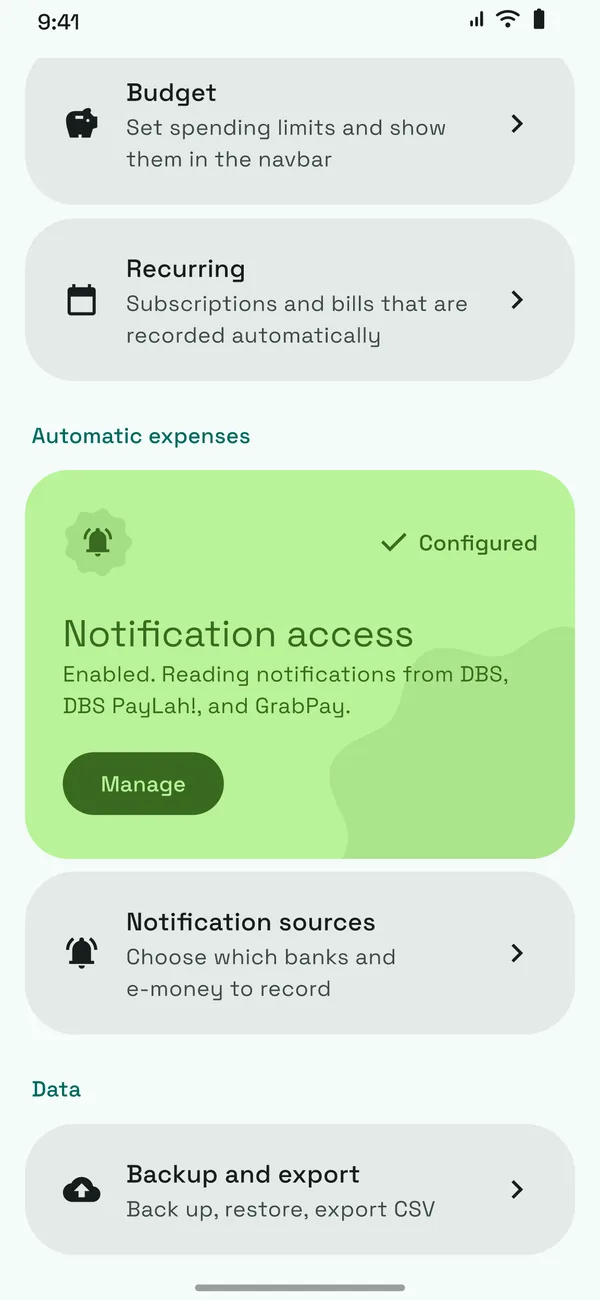
Read bank and e-wallet notifications and turn them into expenses. Review, ignore or recategorize in one tap.
Read bank and e-wallet notifications and turn them into expenses. Review, ignore or recategorize in one tap.
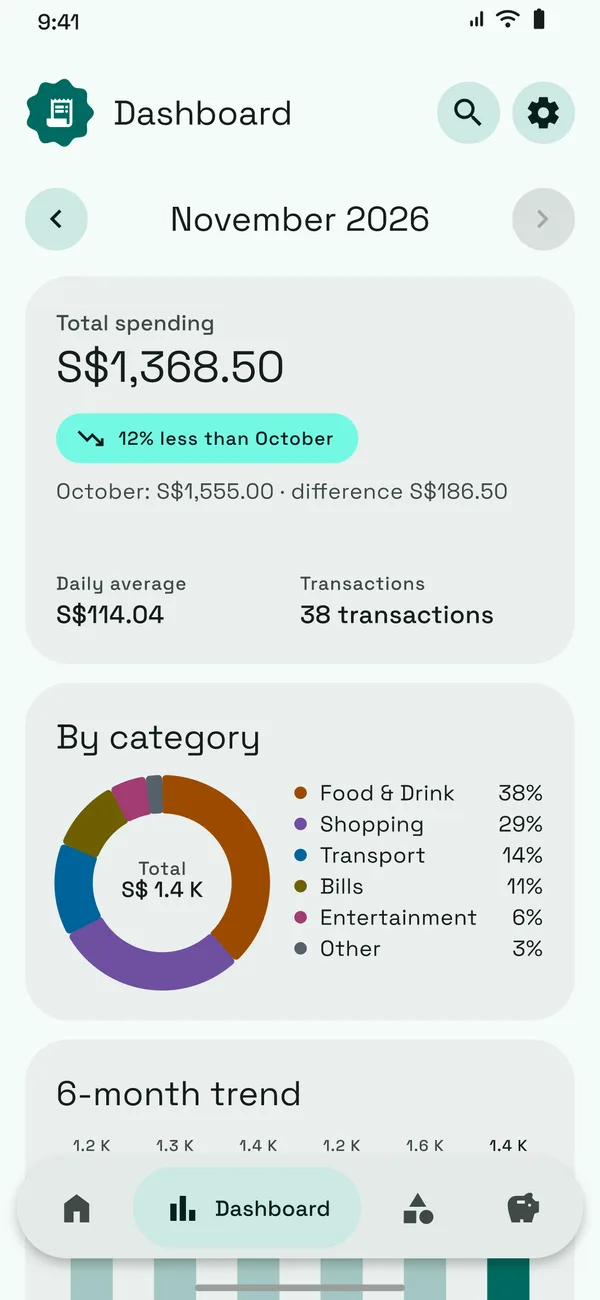
Compare with last month, spot your peak day and see categories as a clear donut.
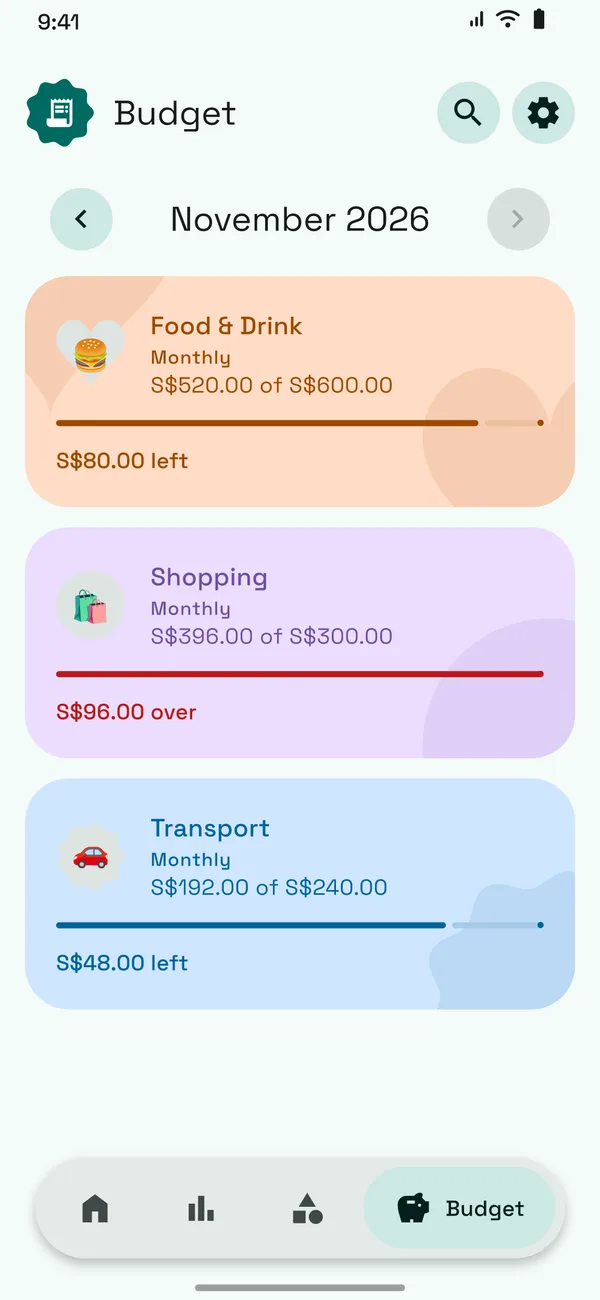
Set a limit per category and see right away when a month runs over.
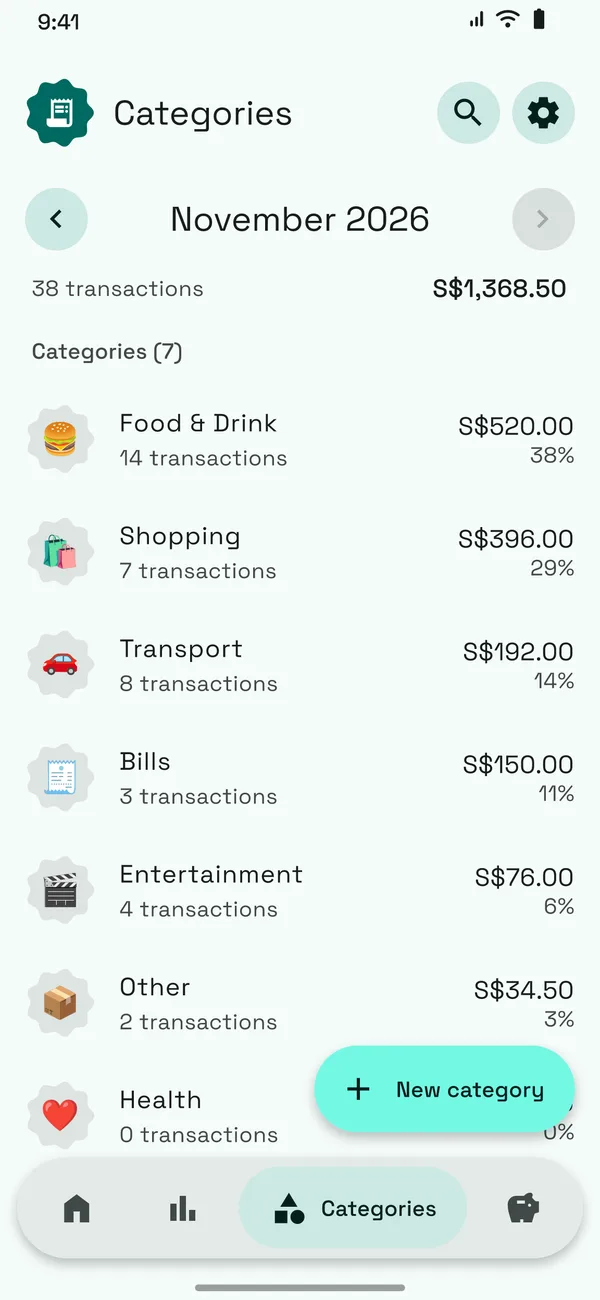
Friendly icons and colors for food, transport, bills and everything else. Add your own in seconds.
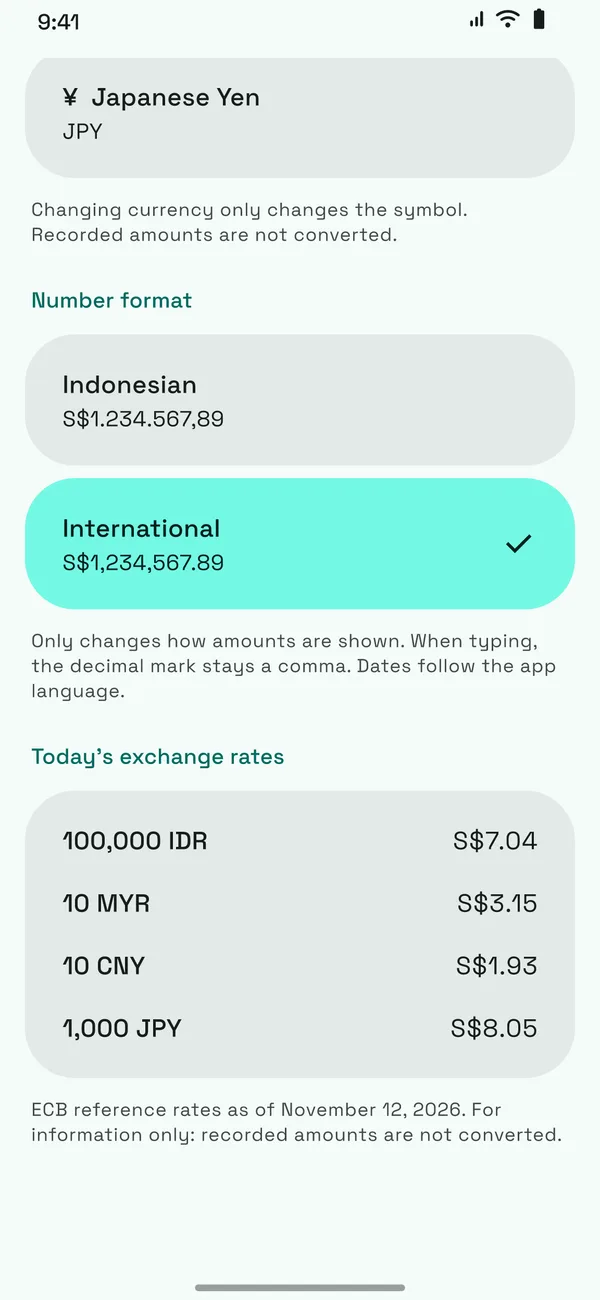
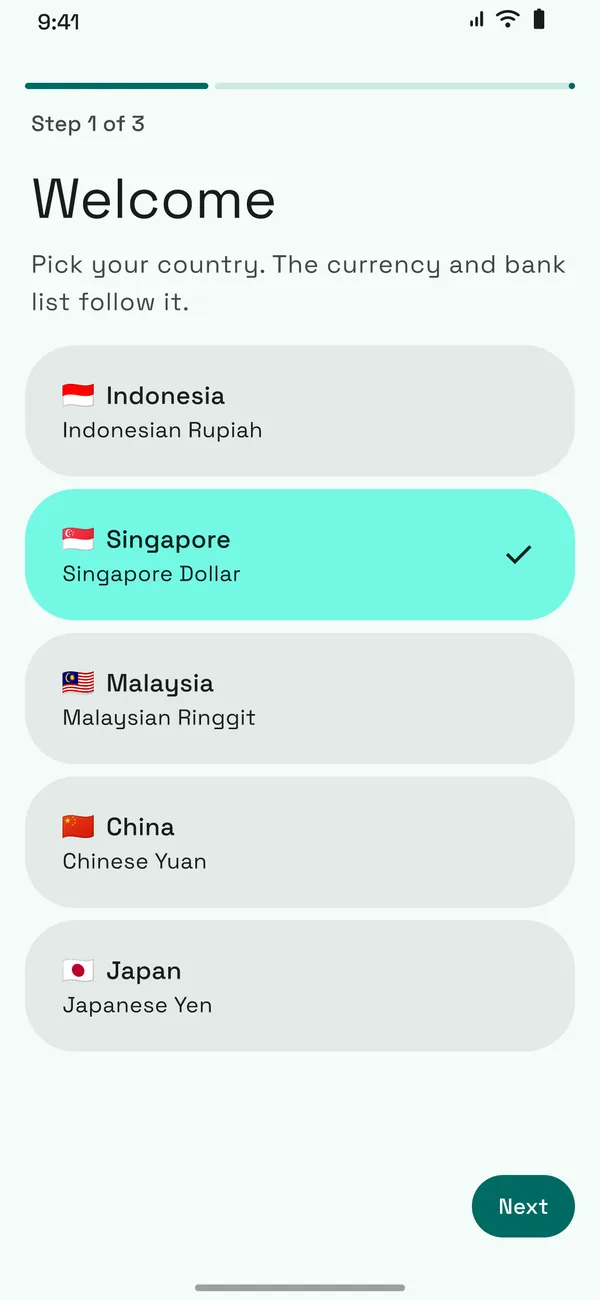
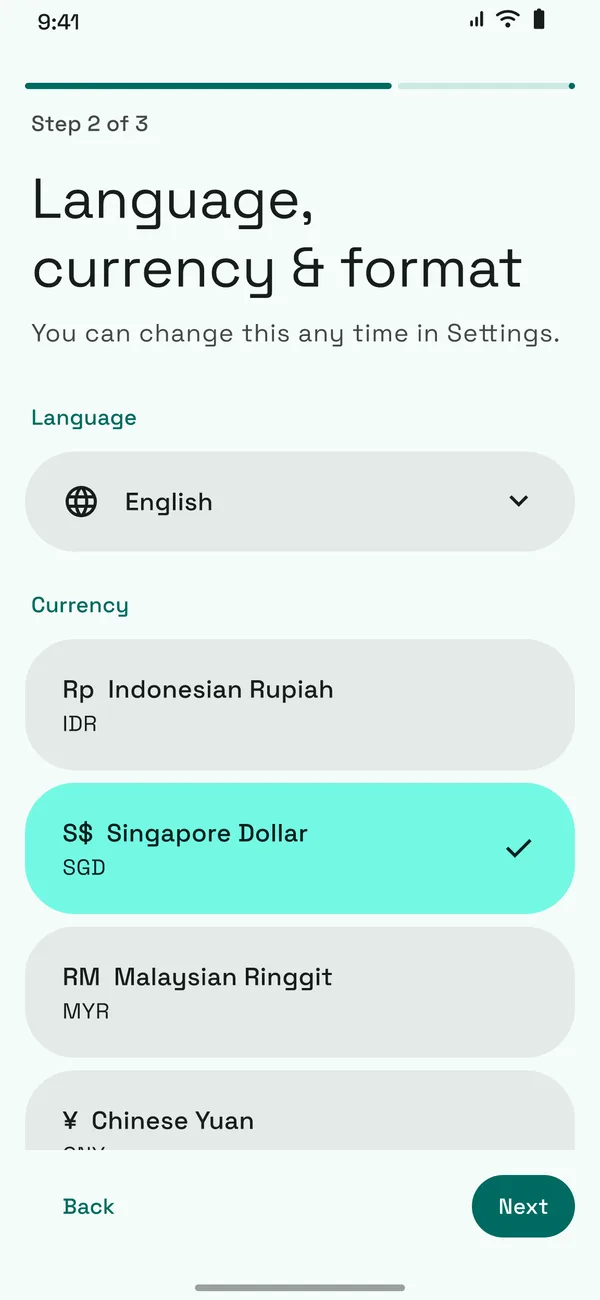
Indonesia, Singapore, Malaysia, China or Japan. Pick yours and the banks, currency and number format follow, with today's exchange rates in Settings.
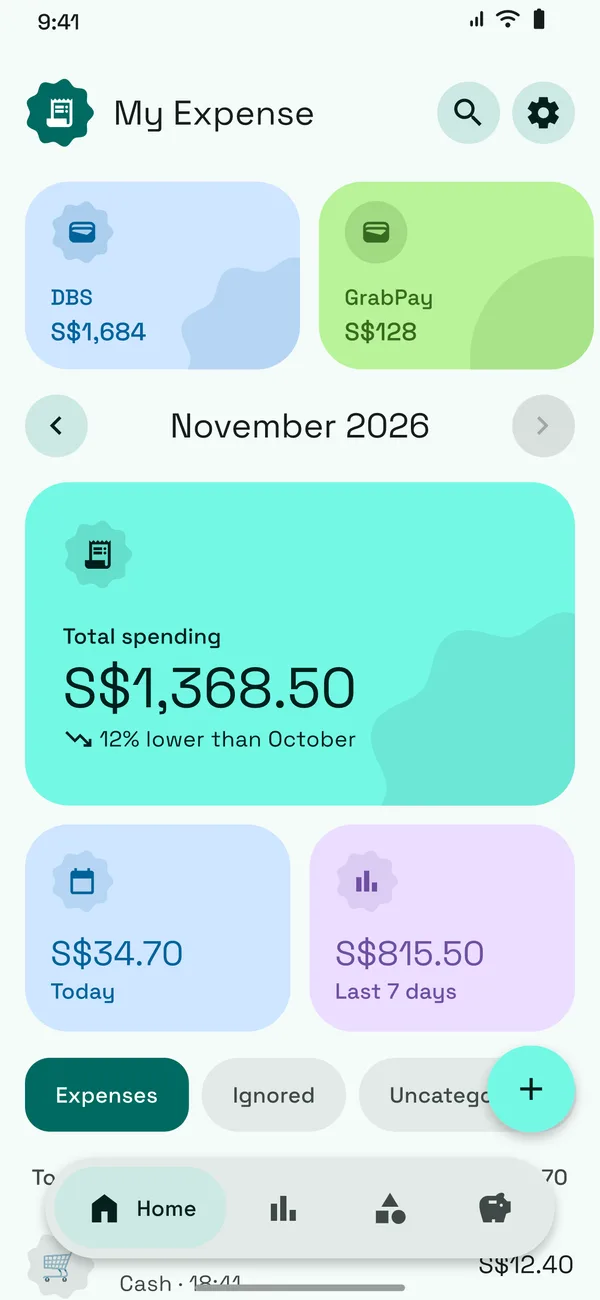
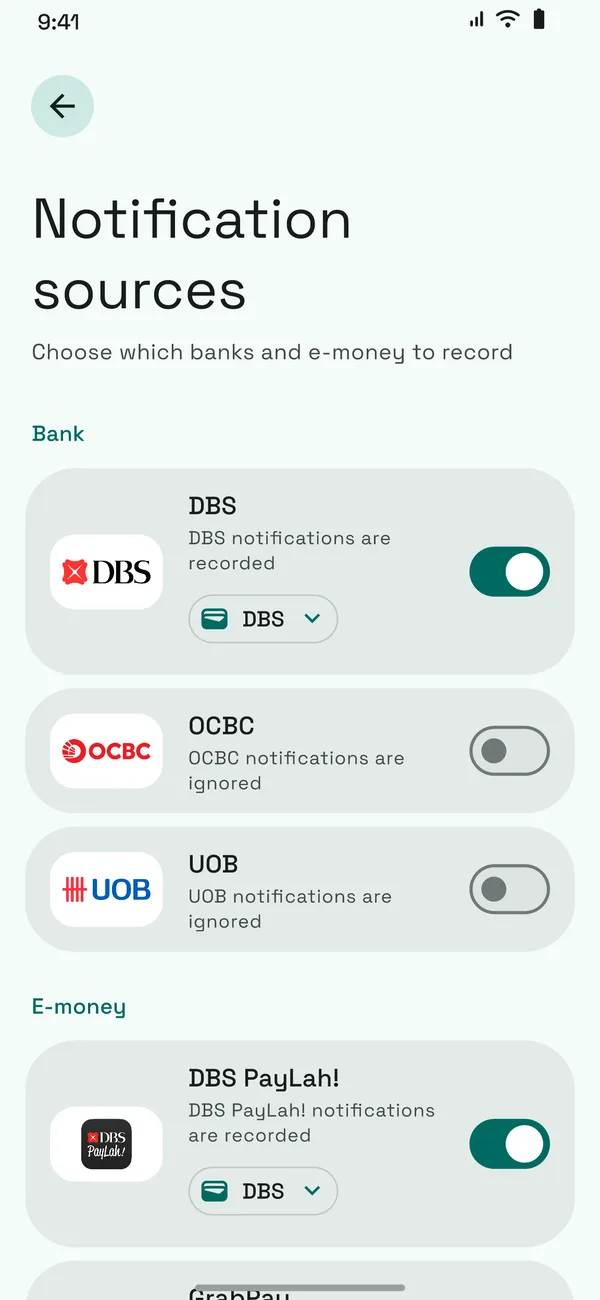
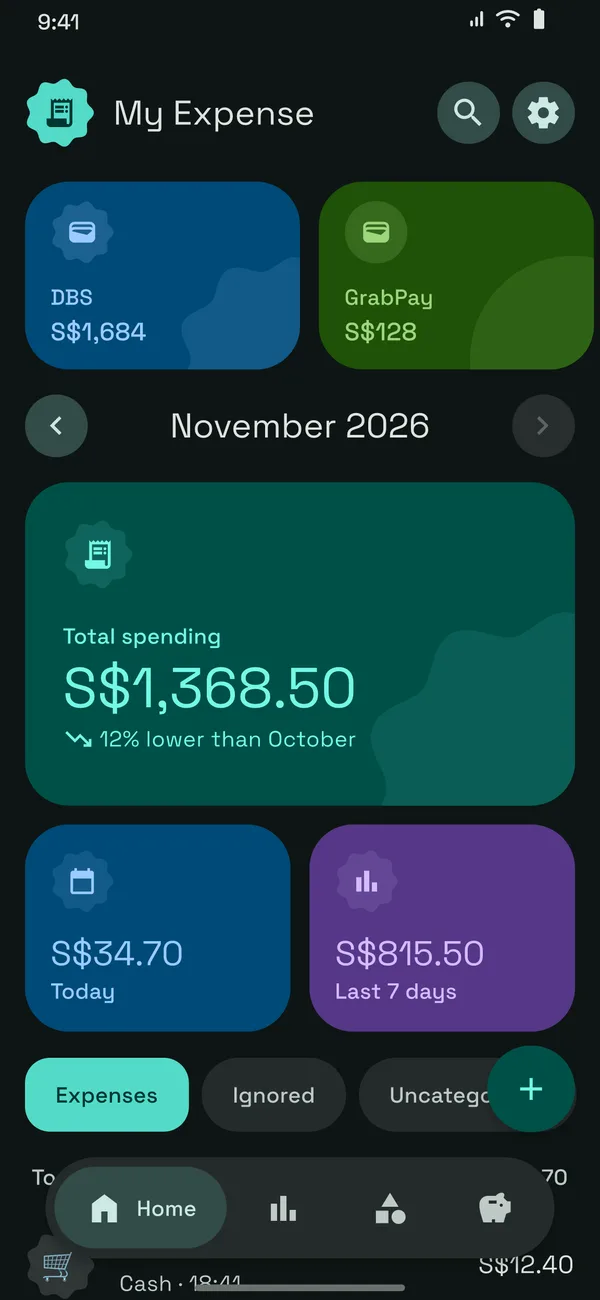
34 banks and e-wallets across Indonesia, Singapore, Malaysia, China and Japan. Pick the ones you use and each gets its own source, so you see balances and spending by account.









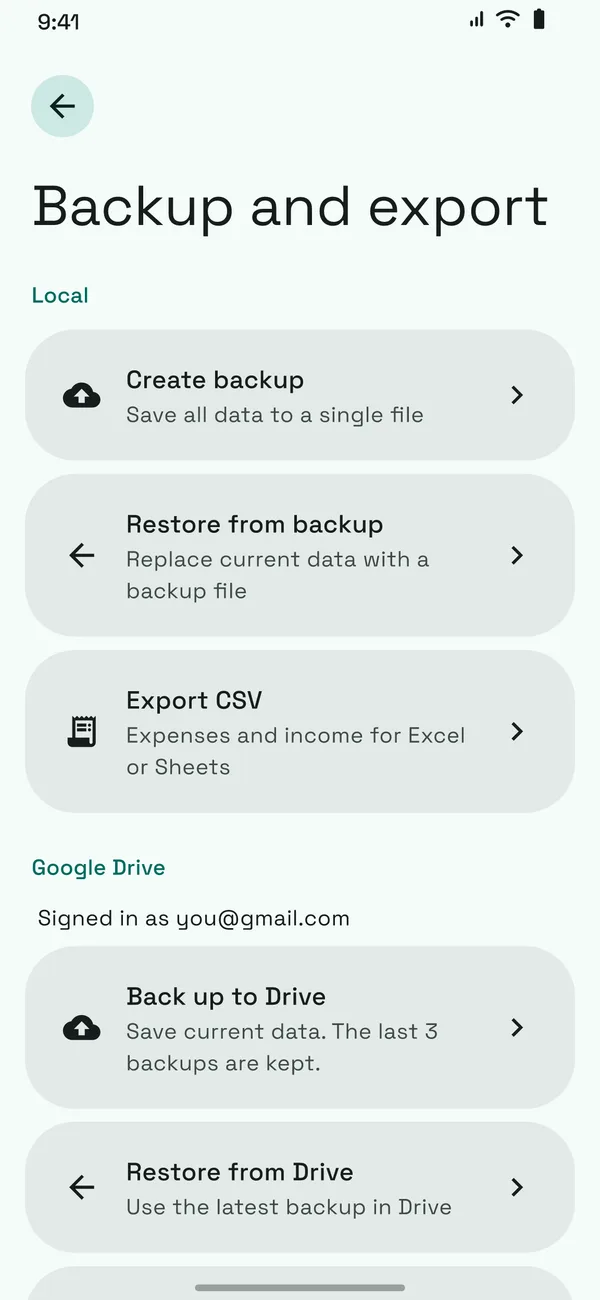
Save your data to a file or sync it with Google Drive, then restore it on a new phone.
Open your expenses in any spreadsheet.
Ask for biometrics before anyone sees your balances.
Short answers about automatic input, countries, backup and supported phones.
You grant notification access once. When a supported bank or e-wallet sends a payment notification, My Expense reads the amount and merchant and adds it to your list for review.
Yes. Ignored items move to their own tab, and you can switch each source on or off at any time.
Indonesia, Singapore, Malaysia, China and Japan. Each country has its own list of banks and e-wallets, its currency and its number format, and you can change the country any time in Settings.
No. Amounts stay in the currency you record them in. Settings shows today's European Central Bank reference rates for information.
Android 7.0 and newer.
Create a backup file or sync with Google Drive, then restore it in My Expense on the new phone.